
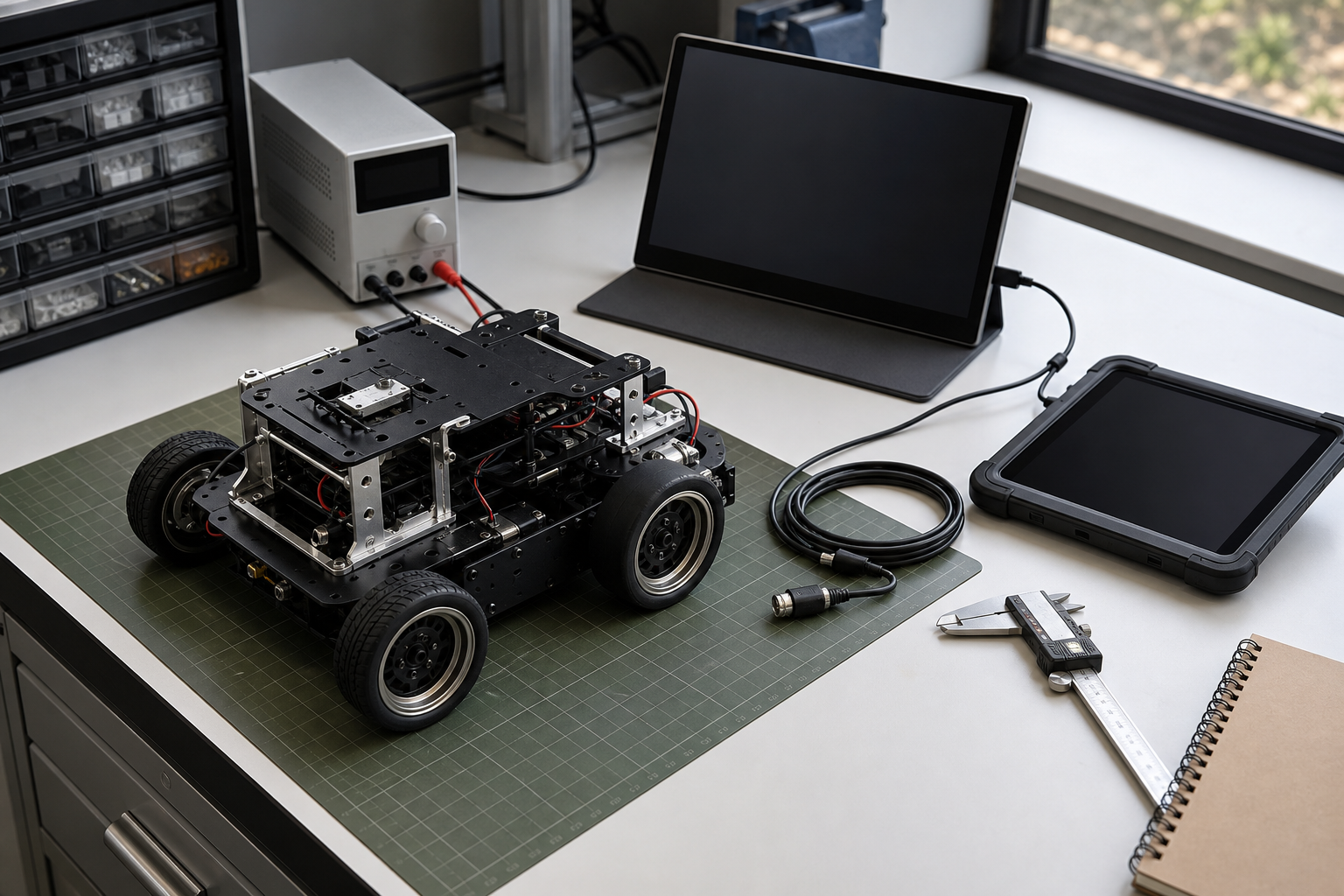
Template B: Analysis / Guide. A robot dashboard can be as simple as a web page on a phone or as elaborate as a multi-screen operator station. Between those extremes, many labs face a practical buying question: should a team use a portable monitor, a tablet, or both?
This is a buyer evaluation, not a hands-on review of one specific product. TVG has not tested every current portable monitor or tablet model. The goal is to define the checks that maker spaces, STEM robotics teams, and small labs should run before buying a display for telemetry, camera feeds, coding sessions, field manuals, or demos.
Quick answer
Use a portable monitor when the robot computer, mini PC, Raspberry Pi, or laptop already provides the software environment and you need a larger, low-latency screen. Use a tablet when touch input, battery operation, camera scanning, note-taking, or mobile apps matter more than direct video input. For many labs, the best kit is one portable monitor for setup/debug work and one rugged tablet for field notes and checklists.
The key difference: screen or computer?
A portable monitor is usually a screen. It depends on another device for compute, storage, apps, and networking. That makes it useful when the robot or workstation already has the software you need. Plug in USB-C DisplayPort Alt Mode or HDMI, and the monitor becomes a larger view into the system.
A tablet is a computer. It has its own battery, OS, radios, cameras, sensors, app store, browser, and update lifecycle. That makes it better for field manuals, forms, QR-code scanning, remote dashboards, and note-taking. It also means the tablet may not accept a direct HDMI or USB-C video input unless the model explicitly supports that workflow or uses capture hardware.
The USB Implementers Forum documents USB-C and power-delivery concepts that explain why one cable can carry power and data in some setups but not all. Display support depends on the device, cable, hub, and monitor. Treat “USB-C” as a connector shape, not a guarantee.
When a portable monitor is the better tool
Portable monitors are strongest during setup and debugging. They are useful for Raspberry Pi projects, mini PCs, Jetson kits, robot-control boxes, camera encoders, and field workstations that need a real display without a full desktop monitor. A 13- to 16-inch portable panel can show logs, terminal windows, a camera feed, and a configuration page more comfortably than a phone.
They also keep software ownership clean. If the robot stack already runs on Linux, Windows, or a browser dashboard, the monitor does not introduce another operating system. It simply exposes the interface. That can reduce surprises during competitions or demos.
The tradeoff is power and cabling. Some portable monitors draw power from the host. Others need a second USB-C power input. HDMI-only monitors may still need USB-C for power. A lab should test whether its mini PC, single-board computer, or battery bank can power the screen without brownouts or cable clutter.
When a tablet is the better tool
Tablets are stronger as mobile field devices. They work well for checklists, PDF manuals, photos, QR-code asset tags, web dashboards, and annotation. They are also better when a student or operator needs to walk around the robot rather than stand at a bench.
For field manuals, display technology matters. TVG’s e-reader and tablet field-manual guide explains the tradeoff between emissive tablet screens and paper-like e-paper devices. For robot dashboards, the tablet advantage is responsiveness and portability, not necessarily sunlight visibility or ruggedness.
The tablet tradeoff is integration. Browser dashboards can work well, but serial consoles, direct HDMI input, wired Ethernet, and USB peripherals may require adapters, apps, or workarounds. OS updates and app permissions can also change behavior. A school or lab that depends on tablets should check management, update, and replacement policies before standardizing.
Specs that matter more than marketing
- Brightness: Indoor desks are easy. Outdoor practice fields and bright classrooms need more headroom.
- Input path: Confirm HDMI, USB-C DisplayPort Alt Mode, touch pass-through, and power requirements before buying.
- Latency: Camera driving and robot control need lower latency than static dashboards.
- Mounting: VESA holes, tripod threads, cases, kickstands, and clamp compatibility decide whether the display survives real use.
- Power: Measure battery-bank drain for the complete kit, not just the screen.
- Ruggedness: A lab cart, classroom floor, or pit table is harder on gear than a desk.
- Update lifecycle: Tablets need OS and browser support. Monitors need fewer updates but may have firmware quirks.
The VESA DisplayPort ecosystem is useful context for display connections, while Raspberry Pi display documentation is a good reminder that small-computer display choices depend on connectors, power, and software configuration rather than screen size alone.
A practical lab buying pattern
For a robotics classroom, buy one known-good portable monitor first and test it with the actual robot computers, cables, and batteries. Verify boot visibility, BIOS/UEFI or console display, Linux desktop behavior, browser dashboards, and camera preview latency. Label the working cable and power brick as part of the kit.
Then evaluate tablets separately. Test the dashboard in the browser that students will actually use. Check login friction, offline access to field manuals, QR-code scanning, protective cases, keyboard support, and whether the device remains useful when Wi-Fi is congested.
Do not assume the premium device is the right one. A cheaper monitor with a reliable kickstand and known USB-C behavior may beat a brighter panel with flaky power negotiation. A midrange tablet with strong case support and long OS updates may beat a faster tablet that cannot be managed easily by a school or club.
TVG Take
Portable monitors and tablets solve different problems. A monitor is the cleanest way to see and debug the robot’s own computer. A tablet is the better mobile companion for checklists, notes, photos, and browser-based control. The winning lab kit is usually not one perfect screen; it is a tested display workflow with labeled cables, known power behavior, and a fallback plan when a venue’s Wi-Fi or lighting is worse than expected.

That’s a really useful breakdown. It makes sense that the ideal choice depends so much on the specific needs of the telemetry work.