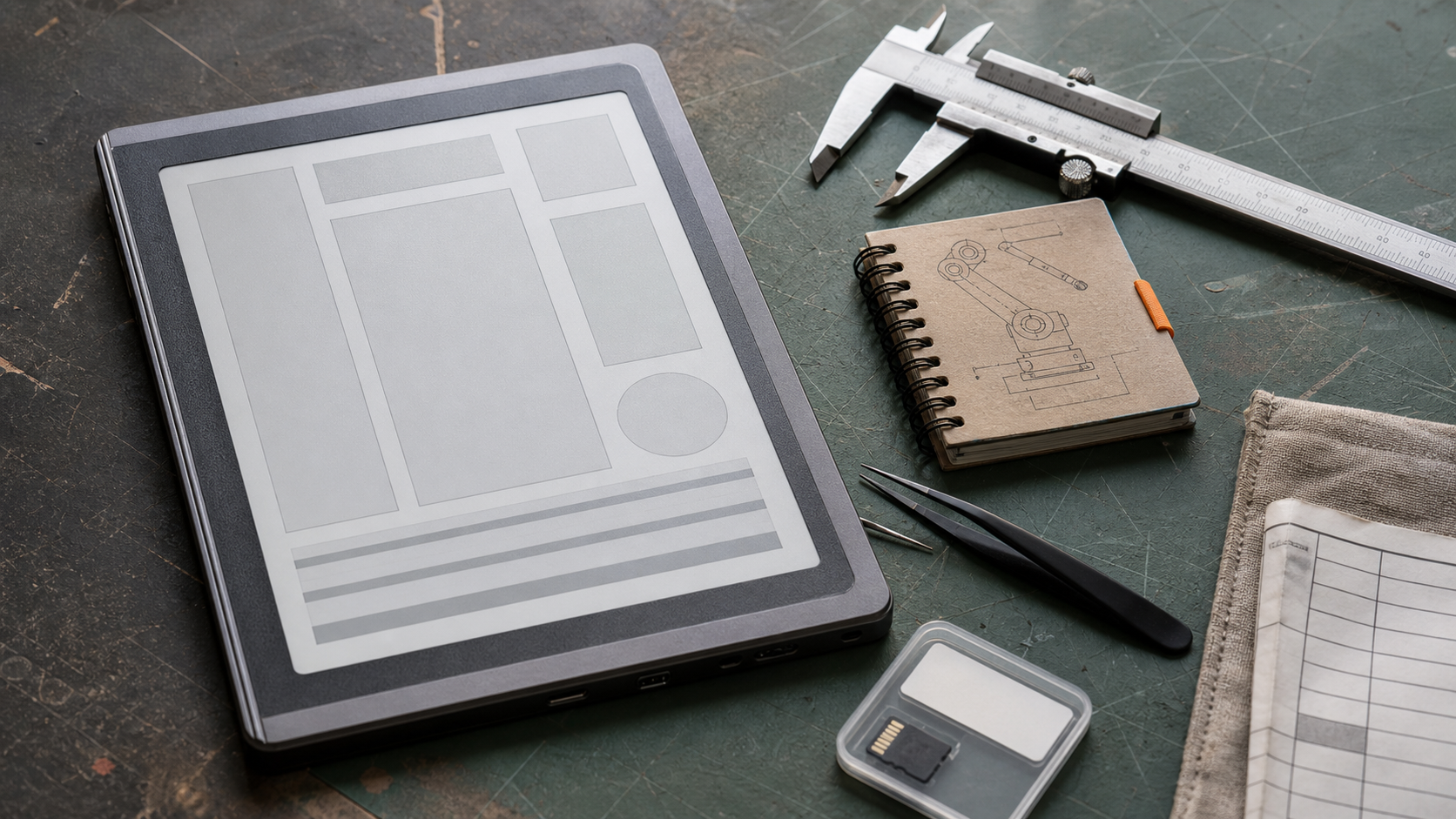
E-readers and e-paper tablets are no longer only book devices. In maker labs, robotics classrooms, field teams, and small engineering shops, they can serve as quiet documentation terminals: wiring diagrams, assembly notes, checklists, safety procedures, and long-form references that do not drain like a tablet screen.
The buying mistake is treating every e-reader display as the same. Screen generation, front-light design, refresh behavior, touch layer, pen latency, storage, file support, and ruggedness all affect whether the device is useful at a workbench or only pleasant on a couch.
This guide explains the display tradeoffs that matter before a team standardizes on e-paper for field manuals or lab notes. It builds on TVG’s earlier comparison of e-readers versus rugged tablets for robotics notes, but focuses specifically on the screen technology and workflow checks.
Why e-paper behaves differently
Most phones, laptops, and tablets use emissive or backlit display systems that refresh quickly and push light toward the viewer. E-paper works differently. E Ink describes its brands as low-power ePaper technologies used across reading, writing, education, mobile, retail, logistics, healthcare, transportation, and outdoor applications. The display is designed to hold an image with very low power draw, which is why an e-reader can sit on a bench showing the same page for hours.
That strength also creates limits. E-paper is slower to refresh than LCD or OLED. Video, live dashboards, fast scrolling, and interactive CAD navigation are usually poor fits. Static manuals, schematics, procedures, PDFs, checklists, and annotated notes are better fits. If a team expects tablet-like animation, it will be disappointed. If it expects daylight-readable reference material, e-paper can be excellent.
Carta, contrast, and black-and-white readability
For most technical reading, black-and-white contrast is more important than color. Text density, diagram line weight, PDF rendering, and ambient lighting determine whether a document remains readable after an hour. E Ink’s Carta family is widely associated with modern black-and-white e-readers and e-note devices. Manufacturers often advertise Carta panels for sharper text, higher contrast, and improved response compared with older generations.
The practical test is not the marketing name alone. Load your actual documents. A robot build manual with thin gray lines, a service PDF scanned at low resolution, or a dense datasheet may reveal weaknesses that a book page does not. If small resistor labels, connector pinouts, or BOM tables become fuzzy after scaling, the device is not a good lab reference even if ordinary reading feels fine.
Screen size matters here. A 6-inch reader is comfortable for books but cramped for technical PDFs. A 7- or 8-inch screen can handle checklists and short manuals. A 10- to 13-inch e-note is better for schematics, classroom worksheets, and field binders, but the device becomes more expensive and less pocketable.
Color e-paper is useful, but not magic
Color e-paper is improving, and it can help with diagrams, maps, highlights, safety coding, and classroom materials. E Ink says Gallery 3 improves black-and-white update time to 350 milliseconds, supports color modes from 500 milliseconds to 1500 milliseconds, reaches 300 pixels per inch, and supports pen input in black and white with additional colors. Those numbers show why color e-paper is becoming more credible for notes and diagrams.
Still, color e-paper should not be judged like an iPad or laptop display. Saturation, refresh rate, ghosting, and document compatibility can vary by product. If a robotics team relies on red/yellow/green safety callouts or color-coded wiring diagrams, it should test those exact documents before buying in quantity. Color that looks pleasant in a product demo may be too muted for a poorly designed PDF.
Front lights, glare, and real workspaces
Many e-paper devices use front lights rather than backlights. A front light shines across the screen surface, helping readability in dim rooms while preserving the paper-like feel. E Ink says Gallery 3 can support its ComfortGaze front light, which is designed to reduce blue-light exposure. In a classroom or workshop, the bigger question is whether the light is even, adjustable, and usable under mixed lighting.
Glare can be a bigger issue than brightness. A glossy cover layer may look premium but reflect overhead shop lights. A matte surface may feel better for note-taking but reduce apparent sharpness. For field manuals, test the device outdoors, under fluorescent lights, near a window, and beside a bright work lamp. The best display spec is the one that remains readable in the places the manual will actually be used.
Refresh modes and ghosting
E-paper devices often use multiple refresh modes. A high-quality refresh gives a clean page but takes longer. A faster mode scrolls or changes pages more quickly but may leave ghosting. For fiction reading, occasional ghosting is minor. For technical work, ghosting can obscure thin lines, decimal points, or connector labels.
Teams should test three tasks: page through a long PDF, jump between table of contents entries, and annotate a diagram. If the device leaves artifacts on line drawings or makes zooming painful, it may still be fine as a reading terminal but poor as an engineering notebook.
Pen input and annotation latency
Pen support can turn an e-reader into a lab notebook, but latency and file export matter. A stylus that feels good for handwriting may still be awkward for marking small schematic details. The annotation layer should preserve notes when exported, sync predictably, and avoid trapping field notes inside one vendor’s app.
For STEM programs, annotation workflow is a bigger buying factor than raw screen resolution. Can students submit marked-up worksheets? Can a mentor export notes as PDF? Can multiple devices share the same manual without account confusion? Can the device be reset between classes?
Battery life and storage are workflow questions
E-paper’s low power draw is useful because manuals often need to stay open while hands are busy. A field technician can leave a page visible while checking a connector. A robotics mentor can keep assembly instructions open while helping a team. But battery claims should be tested with front light, Wi-Fi, pen use, and sync enabled, not only in airplane-mode reading.
Storage matters if the device will carry large PDFs, offline manuals, scanned documents, or classroom packets. A cloud-only workflow may fail in a gym, shop, or remote site with unreliable Wi-Fi. If the device supports USB file transfer, local folders, or removable storage, those details can make it easier to manage a shared documentation library.
What to test before buying several
- Load the exact manuals, wiring diagrams, datasheets, and checklists the team uses.
- Check readability of small labels, table text, gray lines, and color-coded warnings.
- Test page turns, search, zoom, and table-of-contents jumps inside large PDFs.
- Try the screen under shop lights, sunlight, dim classrooms, and mixed lighting.
- Export annotated PDFs and verify notes remain readable on another computer.
- Measure battery life with the front light and Wi-Fi settings the team actually uses.
- Confirm device-management basics: reset process, accounts, offline access, and warranty path.
TVG Take
An e-reader is a good field-manual device when the content is mostly static, text-heavy, and reference-oriented. It is a poor replacement for a rugged tablet when the job requires video, live telemetry, fast web apps, camera capture, or complex CAD interaction. The display technology should be matched to the document set, not chosen from a generic spec sheet.
For maker labs and robotics classrooms, the best first purchase is usually one test unit loaded with real documents. Use it for two weeks beside the tools, not at a desk. If students, mentors, or technicians keep reaching for it because it is readable, calm, and always-on, then the display is doing its job.