Wi-Fi 7’s Multi-Link Operation sounds like the feature home labs have been waiting for: one client using more than one wireless link across bands such as 2.4 GHz, 5 GHz, and 6 GHz. For robot cameras, maker benches, portable monitors, and media rigs, that can reduce latency spikes and improve resilience.
It does not replace good placement.
Quick answer
For a home lab or maker garage, treat Wi-Fi 7 MLO as a reliability tool, not a magic range extender. Put the access point where the robot, camera, or dashboard actually works, use wired backhaul, avoid hiding APs behind metal shelving, and confirm that the client device really supports the MLO mode you plan to use.
What MLO changes
The Wi-Fi Alliance lists Multi-Link Operation as one of Wi-Fi 7’s major features, alongside wider 320 MHz channels in 6 GHz spectrum and higher-order modulation. In plain terms, MLO lets compatible devices maintain links across multiple bands instead of treating each band as a completely separate connection.
That matters in a lab because interference is uneven. A 6 GHz link may be clean and fast across the room, while 2.4 GHz may punch farther through clutter. A 5 GHz link may be the practical middle ground for older equipment. MLO gives capable devices a way to use more than one path, but only inside the limits of the AP, client radio, firmware, and environment.
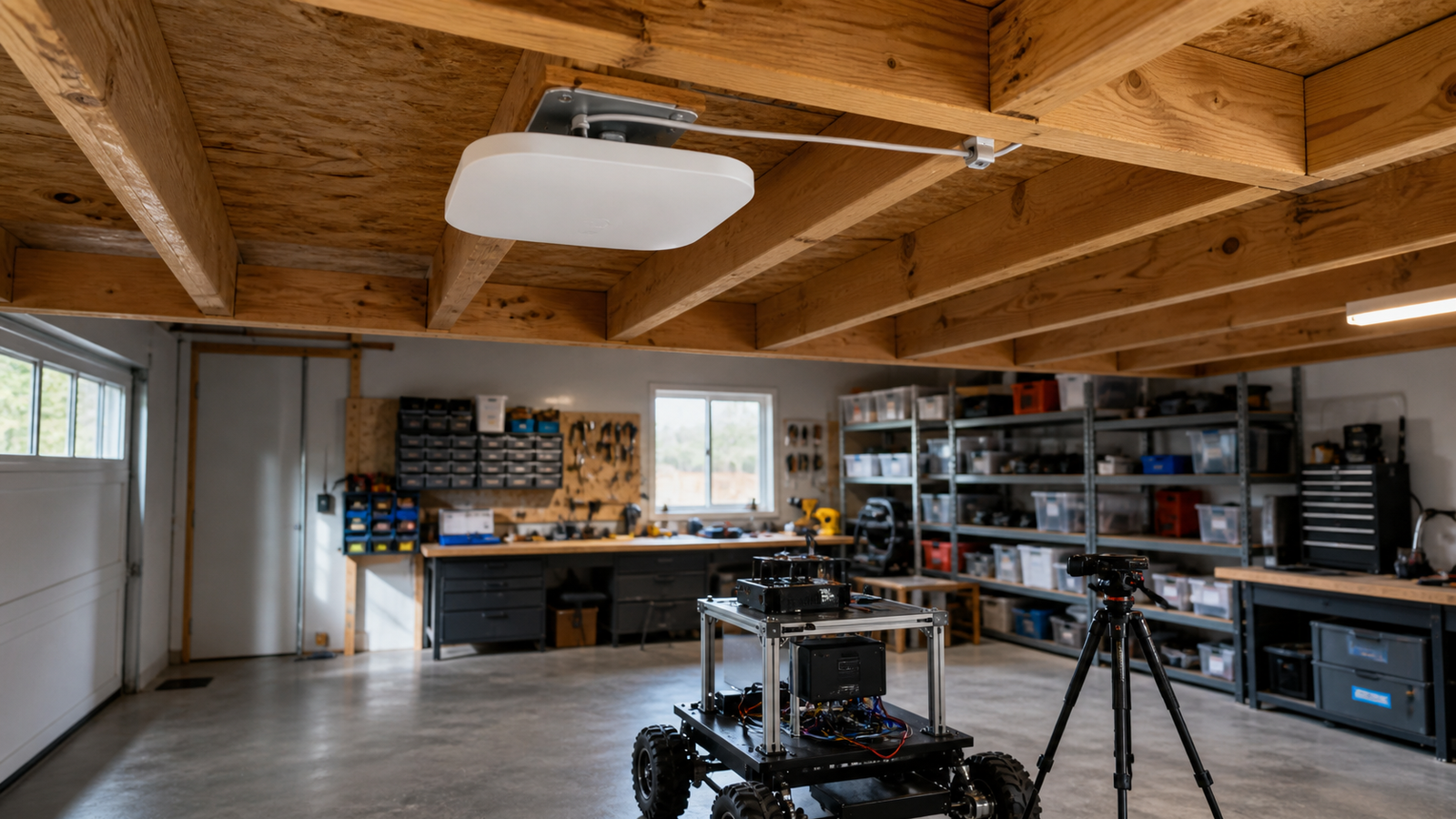
Placement rules for robot and camera workflows
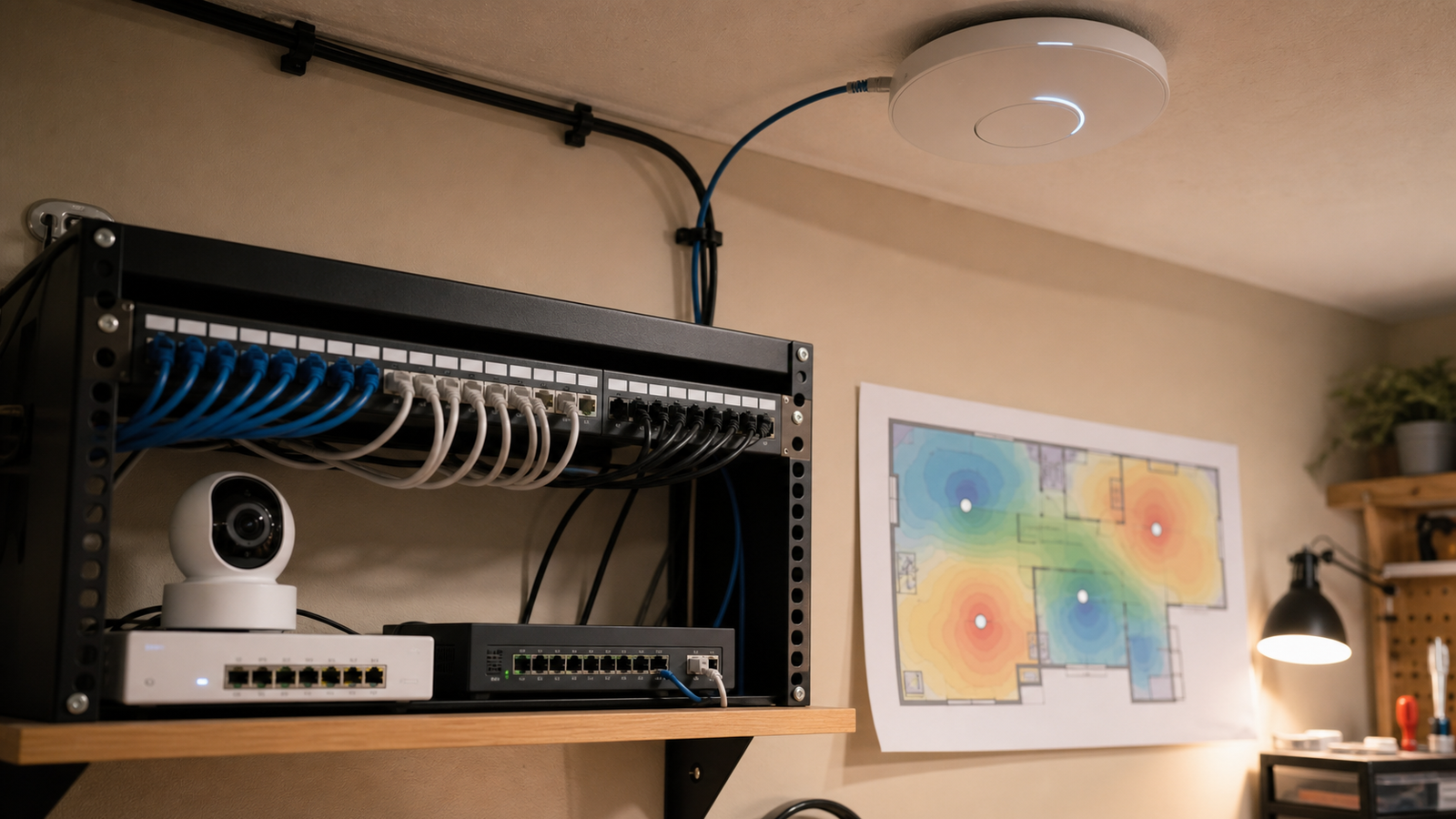
Start with line of sight. Robot carts, camera tripods, metal tool cabinets, garage doors, battery packs, and 3D-printer frames can all change the RF environment. A ceiling or high-wall AP often works better than a router sitting behind a monitor or under a desk.
Next, separate backhaul from client traffic. If the access point is wirelessly meshed back to another room, a robot video stream has to share airtime with the link feeding the AP itself. Wired Ethernet backhaul is still the cleanest foundation for low-latency camera feeds and remote-control sessions.
Finally, test where the work happens. Walk the robot route. Put the camera on the actual tripod height. Stream from the field monitor while the 3D printer, NAS backup, smart lights, and household devices are active. A speed test from the couch is not a lab validation.
Where MLO can help
- Robot dashboards: smoother telemetry when the client can keep a secondary link active during interference.
- Creator capture stations: more stable uploads from cameras or field recorders that support modern Wi-Fi modes.
- STEM classrooms: fewer single-band dead spots when many student devices are active.
- Home-lab admin: better responsiveness for tablets or laptops used as dashboards, though wired remains preferable for servers and NAS.
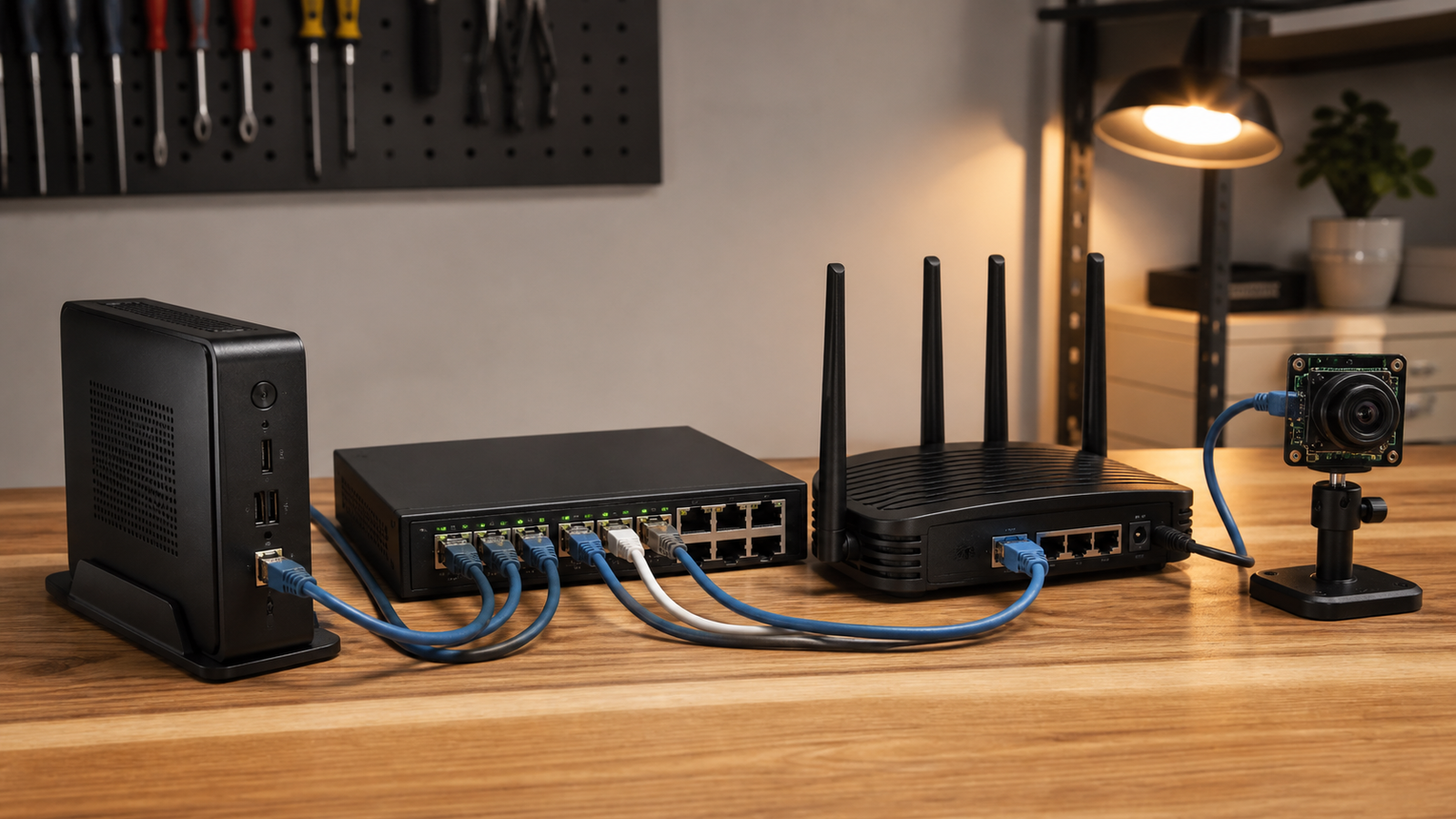
Checklist before upgrading
- Confirm the client supports Wi-Fi 7 and the intended MLO mode.
- Use wired backhaul for APs where possible.
- Place APs away from metal shelving, enclosures, and floor clutter.
- Do not rely on 6 GHz for long-range coverage through multiple walls.
- Keep mission-critical robot control on wired, dedicated, or fallback-safe links when safety matters.
- Compare against TVG’s earlier Wi-Fi 7 router spec checklist for home labs before buying.
TVG Take
Wi-Fi 7 MLO is useful because it gives compatible devices more ways to stay connected. The engineering mistake is assuming the feature fixes bad layout, weak backhaul, and unsupported clients. For robots, cameras, and maker benches, build the network from the physical workflow outward.