
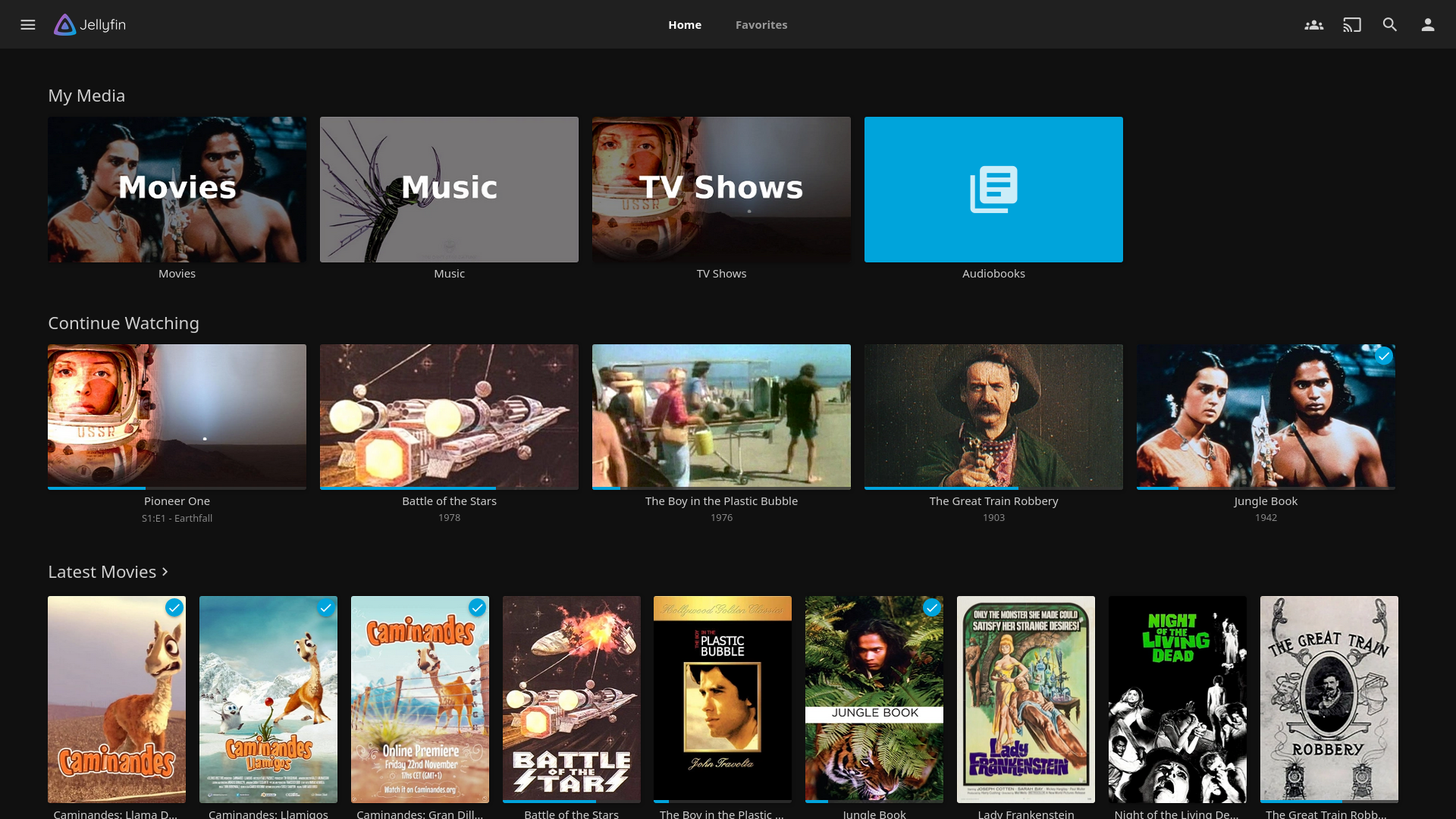
When Jellyfin playback stutters, the first useful reading is not CPU percentage or GPU utilization. Open the server dashboard during the problem stream and read its playback mode. Jellyfin labels the session Direct Play, Remux, Direct Stream or Transcode; each label identifies a different conversion boundary.
Featured image: Jellyfin Project.
This order prevents an expensive false diagnosis. A container mismatch can trigger Remux with little processing, an audio mismatch can produce Direct Stream, and subtitle burn-in can force full video transcoding even when the video codec itself is supported.
Start with the four dashboard labels
Direct Play sends the file without modification. Jellyfin describes it as almost no additional server load. If Direct Play still buffers, investigate network throughput, storage delivery and the client rather than a transcode engine.
Remux changes the container but leaves the encoded audio and video streams untouched. Think of moving compatible tracks into a wrapper the client accepts. Because the server is not re-encoding either stream, high CPU use during a genuine Remux points elsewhere.
Direct Stream, in Jellyfin’s terminology, converts audio while retaining the original video. That is a narrower job than video transcoding. Transcode means the video stream is being re-encoded and is normally the heaviest path.
Identify the property that failed compatibility
Jellyfin’s client sends profiles describing supported codecs, resolutions, bitrates and other constraints. The server then chooses an output within those capabilities. An unsupported video codec leads to video transcoding; an unsupported container can be solved by Remux; incompatible audio can produce Direct Stream.
Subtitles deserve their own check. Text subtitles may be passed or remuxed depending on the client, but image-based or otherwise unsupported subtitles can require burn-in. Jellyfin’s codec documentation identifies subtitle burn-in as the most CPU-intensive subtitle path because the text or bitmap must be rendered into every video frame.
Test one variable at a time: play the same title without subtitles, then with the original audio track, then on a different official client. Record the dashboard mode after each change. That sequence reveals whether the trigger follows subtitles, audio, video or the client profile without changing the library file.

Only then inspect hardware acceleration
If the dashboard confirms video Transcode, open the session details and the FFmpeg log. Verify that the configured hardware-acceleration method matches the GPU and operating system, and that both decode and encode stages use the intended device. A GPU listed in the host does not prove Jellyfin’s FFmpeg process can access it.
Jellyfin also warns that HDR-to-SDR tone mapping is demanding in software. That is a separate workload from a simple container remux. Before applying the broader hardware-transcoding capacity guide, establish the actual path and source format.
If the stream is already Direct Play or Remux, a new GPU is unlikely to solve the immediate problem. Check link rate, Wi-Fi conditions, storage latency and the client. The same separation is useful when deciding between the failure domains of a NAS and a mini-PC server.