A home-lab media server looks simple until a classroom, maker space, or small creator team starts using it for real work. One person plays a file locally and everything is fine. Then a second user streams from a tablet, a drone clip arrives in a codec the TV cannot decode, a remote editor wants a preview, and the server suddenly has to transcode video on the fly.
That is where hardware transcoding matters. It can move heavy video conversion work from the CPU to an integrated GPU, discrete GPU, or media engine. But it is also one of the easiest specs to misunderstand. A media server is not “good” at transcoding just because it has a GPU, and a NAS is not “bad” just because its CPU looks modest.
This guide is for creator teams, STEM labs, and technically curious households choosing between Plex, Jellyfin, Emby, a NAS appliance, a mini PC, or a reused desktop. It is not a ranking of media apps. It is a sizing checklist for the hardware path underneath them.
Start with the files, not the server
The first question is what the server will actually serve. A library of 1080p H.264 files is very different from 4K HEVC, HDR footage, AV1 test clips, high-bitrate camera originals, ProRes proxies, or mixed drone/action-camera exports.
If most clients can direct-play the files, the server may do very little conversion. If clients cannot decode the format, cannot handle the bitrate, or need subtitles burned in, transcoding starts. Plex explains in its hardware-accelerated streaming support article that hardware acceleration can help convert video faster and reduce CPU load, while also noting account and platform requirements.
For a maker lab, the practical move is to build a sample library before buying hardware: one drone file, one action-camera file, one phone HDR clip, one screen recording, one long lecture video, one subtitle-heavy file, and one intentionally awkward export. Test those on the actual TVs, tablets, browsers, and projectors the lab uses.
Know the transcoding path
Hardware transcoding usually means the app hands decode or encode work to a supported video engine. Common paths include Intel Quick Sync Video, NVIDIA NVENC/NVDEC, AMD acceleration, VAAPI on Linux, and platform-specific APIs. Jellyfin’s hardware acceleration documentation lists several of those options and shows how quickly the answer becomes platform-specific.
Emby’s hardware acceleration overview makes the same broad point: support depends on hardware, operating system, drivers, and app configuration. A spec sheet that says “GPU” is not enough. You need the exact encode/decode block, driver support, container permissions if using Docker, and app feature availability.
This is why small Intel mini PCs are popular in home labs. Many include media engines that can handle common transcodes efficiently, and they often draw less power than an old tower with a hungry discrete GPU. But they still need enough memory, storage bandwidth, cooling, and network capacity to behave well under load.
Separate storage from conversion
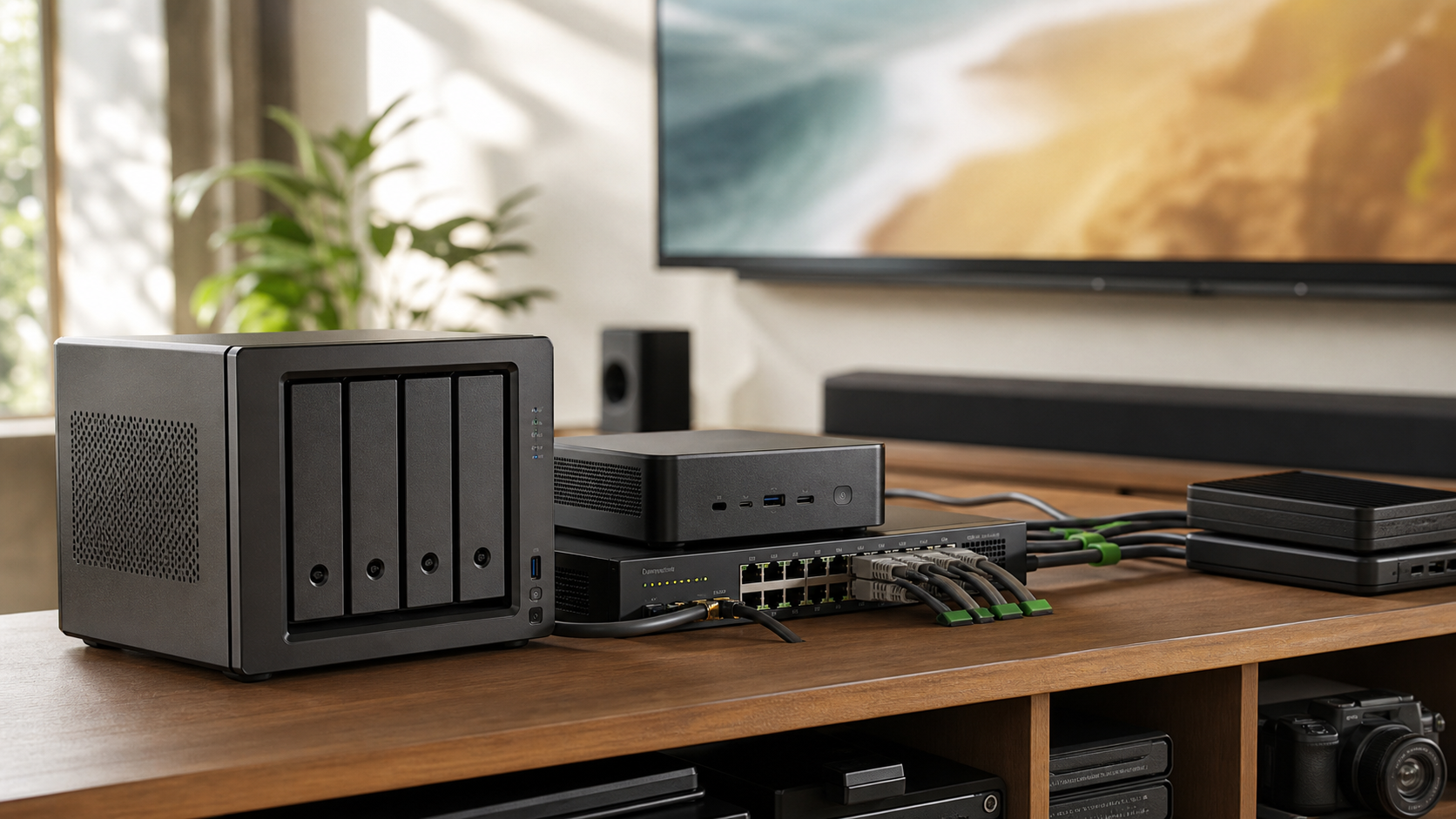
Storage and transcoding are related, but they are not the same decision. A NAS may be excellent for keeping a library safe and accessible, while a mini PC handles the conversion workload. That split can be cleaner than forcing one box to be storage appliance, app host, GPU worker, backup target, and experiment bench.
TVG’s NAS vs external SSD guide for creator and maker backups is useful here because backup design should not be sacrificed for playback convenience. A media server can be rebuilt. A lost shoot, class archive, or lab dataset cannot.
Network design matters too. A 4K direct-play stream may be easier on the server but harder on Wi-Fi. A low-bitrate transcode may save network capacity but increase server load. TVG’s Wi-Fi 7 home-lab guide explains why headline wireless speed rarely tells the whole story.
The five checks before buying hardware
1. Client compatibility. List the actual playback devices. A new TV, an older projector stick, an iPad, a Chromebook, and a browser-based workstation may support different codecs and subtitle modes.
2. Codec mix. Identify H.264, HEVC, AV1, HDR, 10-bit color, and audio formats in the library. Camera and drone teams should also check whether they are storing originals, proxies, or exported review copies.
3. Simultaneous users. A single transcode is a low bar. A classroom review day, family media night, or studio handoff can create several streams at once. Test concurrency with real files, not tiny sample clips.
4. App licensing and features. Plex, Jellyfin, and Emby differ in account model, paid features, client apps, remote access, and admin style. Hardware support is only useful if the app exposes it in the version and environment you plan to run.
5. Recovery path. Decide how the server will be restored after a failed update, dead SSD, driver break, or mistaken library scan. In a lab, boring recovery beats clever configuration.
What not to overspend on
Do not buy a workstation GPU just because the term “transcoding” sounds heavy. Many media-server tasks are light when files direct-play. Do not buy a high-core-count CPU if the bottleneck is actually Wi-Fi or client codec support. Do not buy a locked-down NAS if your team needs fast app updates, container access, or GPU passthrough that the box does not support well.
Also be careful with online “streams per GPU” claims. They may assume a specific codec, resolution, bitrate, driver version, app version, operating system, and quality setting. A better test is your own worst-case file set on your own clients.
TVG Take
The best media-server build for a creator team is usually not the most powerful box. It is the setup with predictable codec support, enough network headroom, clean storage design, and a recovery path that a second person can understand.
If you are starting from zero, use a two-week pilot: build a small representative library, test direct play versus transcode, log CPU/GPU/network load, and intentionally break one update or container setting to see how hard recovery is. That test will tell you more than a spec sheet.